
Touchpoints for parks departments
Time and task tracking for parks crews
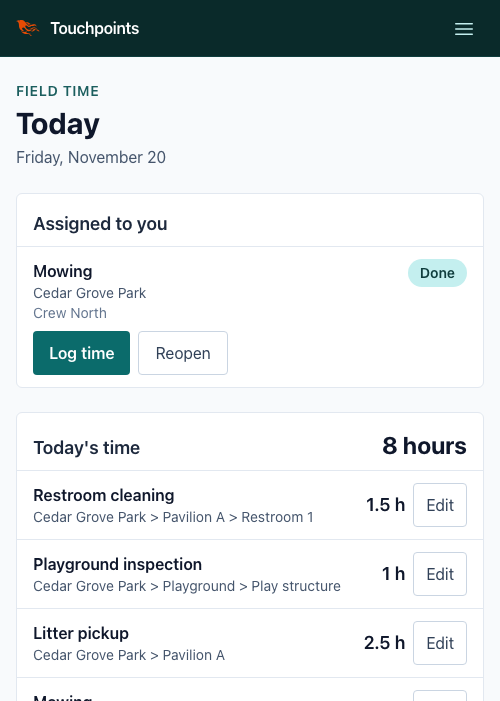
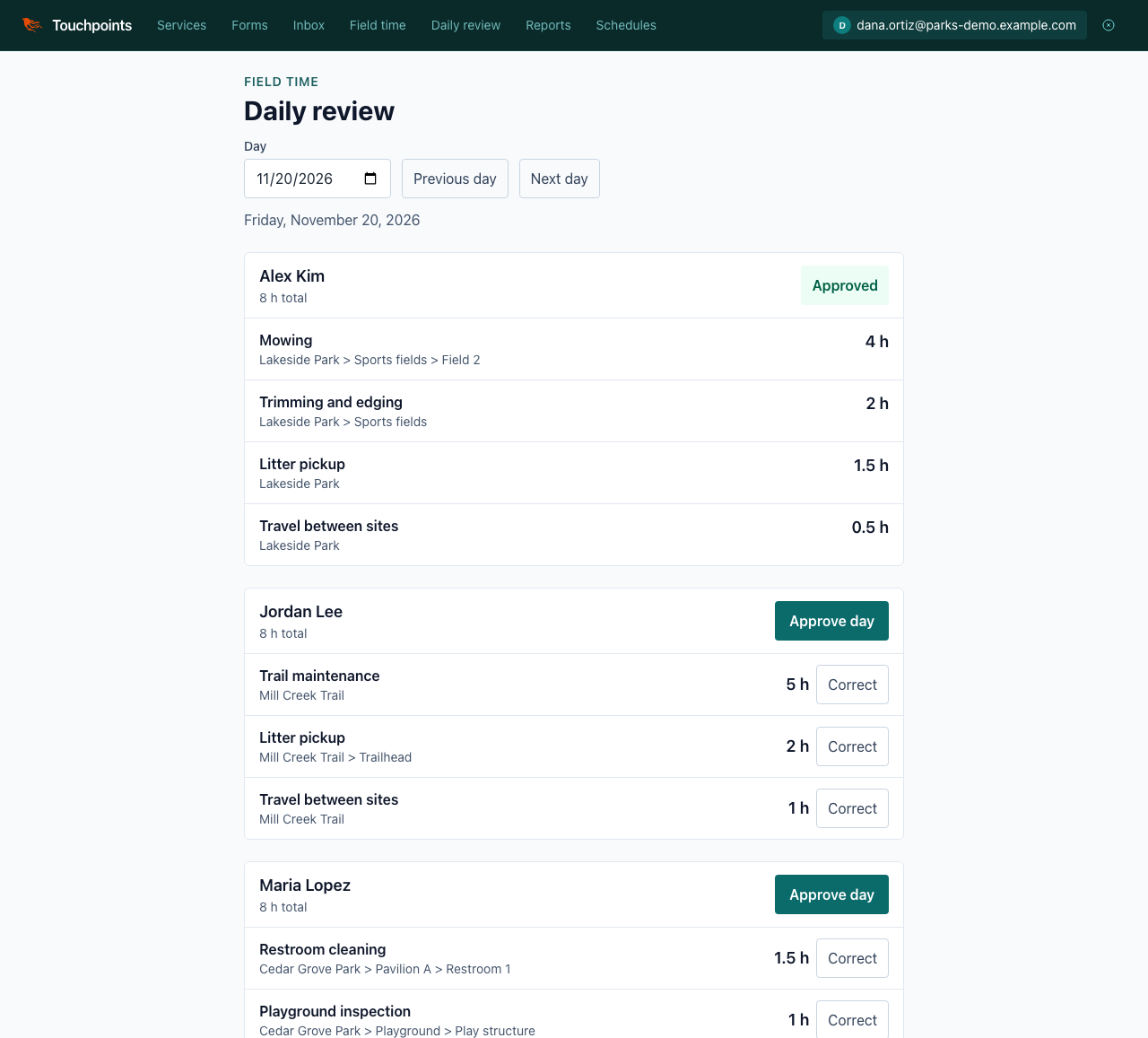
Crew members log the day by task and site from a phone, in quarter-hour steps. Supervisors review each day, correct what needs it and approve. Reports show where crew time goes, by park, by task and by person.
The demo is read-only and needs no account.
Two screens, one record of the day
How it works
-
1. Set up tasks and sites
Supervisors keep the task list and the list of parks, with the facilities and assets inside each one. Both lists can be imported from a CSV file.
-
2. Assign the work
Assign a task at a site to a crew or a person for a day. Schedule routine work, like weekly mowing, once.
-
3. Pick a task and a site
At the end of a shift, crew members log each piece of work with its task, site and hours, in 0.25-hour steps. Recent picks come first, and an assignment fills in the task and site in one tap.
-
4. Works offline
Add the entry screen to an iPhone's home screen. Entries made without signal are kept on the phone and sync once, when the connection returns.
-
5. Supervisor approves
Supervisors see each day's entries by crew member, and who hasn't logged time. They correct an entry with their name on the change, then approve the day, which locks it.
-
6. Report and export for payroll
Run time by employee, task or location for any dates, with each park's facilities and assets rolled up. Export any report as a CSV for payroll or budgeting.
For IT and security reviews
-
Sign in with Microsoft
Crews sign in with their organization's Microsoft Entra ID account. Entra groups can set who is a crew member and who is a supervisor.
-
An audit log you can export
Sign-ins, role changes, entry edits, corrections and approvals are logged. The log exports daily as JSON Lines, or forwards to syslog.
-
Roles that match the job
Crew members see and change only their own entries. Supervisors keep the lists and review the day; administrators assign roles.
-
Accessibility checked
Every field screen passes automated WCAG 2.1 AA checks, with 44-pixel touch targets. An accessibility conformance report (VPAT) is available on request.
See a week of parks work
The demo is a fictional parks department with two crews, four parks and the last five workdays of entries. Switch between a crew member's day and the supervisor's review.